Converting JPG images into editable Excel spreadsheets has become much easier with modern OCR and AI-powered tools. Instead of manually entering tables, invoices, receipts, or scanned data into spreadsheets, users can now upload a JPG image and have an editable Excel file generated within seconds.
JPG-to-Excel converters are widely used by businesses, students, accountants, researchers, and office professionals to save time, reduce manual work, and improve accuracy.
In this step-by-step guide, you will learn how JPG to Excel converters work, how to use them effectively, and how to improve conversion accuracy.
What is a JPG to Excel Converter?
A JPG to Excel converter is an online tool that extracts table data, text, and numerical information from JPG images and converts them into editable spreadsheet formats such as:
- XLSX
- CSV
- Excel spreadsheets
These tools use OCR (Optical Character Recognition) and AI-based table recognition technology to detect rows, columns, and spreadsheet structures automatically.
You may also like:
“How OCR Technology Works in Image to Excel Tools”
Why Convert JPG to Excel?
Many important documents are stored as JPG images instead of editable spreadsheets.
Examples include:
- Invoice photos
- Receipts
- Scanned reports
- Screenshot tables
- Bank statement images
- Printed documents
Typing all this information manually into Excel takes time and increases the risk of errors.
JPG to Excel converters help users:
- Save time
- Reduce manual data entry
- Improve productivity
- Organize data easily
- Increase accuracy
Step-by-Step Guide to Convert JPG to Excel
Follow these steps to convert JPG images into editable Excel spreadsheets online.
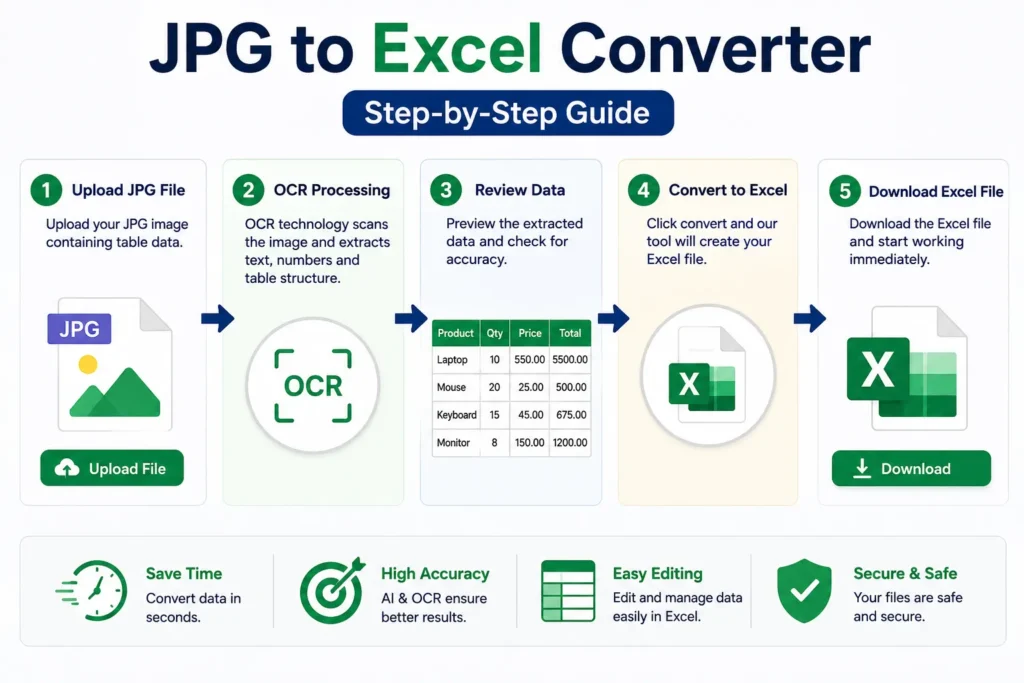
Step 1: Open a JPG to Excel Converter
Visit a reliable online JPG to Excel conversion tool that supports OCR and AI-powered table extraction.
A good converter should support:
- JPG
- JPEG
- PNG
AI-powered tools usually provide better spreadsheet formatting accuracy.
You can also read:
“Image to Spreadsheet Converter Explained”
Step 2: Upload Your JPG File
Click the upload button and select your JPG image from your device.
For better conversion results:
- Use high-quality images
- Avoid blurry photos
- Ensure the table is fully visible
- Keep text readable
High-resolution images improve OCR recognition accuracy significantly.
Step 3: OCR Processing Starts
After uploading the image, the OCR engine scans and analyzes the content.
The system identifies:
- Text
- Numbers
- Rows
- Columns
- Table structures
AI-based converters also detect spreadsheet formatting and cell alignment.
Step 4: Review Extracted Spreadsheet Data
Most online tools display a preview of the extracted data before generating the final Excel file.
Check:
- Row formatting
- Missing values
- Incorrect characters
- Table alignment
This step helps improve overall spreadsheet accuracy.
Step 5: Download the Excel File
After reviewing the data, download the converted spreadsheet file.
Most tools support:
- XLSX format
- CSV format
You can open the file in:
- Microsoft Excel
- Google Sheets
- Other spreadsheet software
Best JPG Images for Accurate Conversion
OCR accuracy depends heavily on image quality.
For best results:
- Use clear images
- Avoid shadows
- Keep tables straight
- Upload properly cropped documents
- Use readable fonts
Poor image quality can reduce text recognition accuracy.
How OCR Technology Works in JPG to Excel Tools
OCR technology allows computers to recognize text and numerical data from images.
Modern JPG to Excel tools use:
- OCR engines
- Machine learning
- AI-based table analysis
to convert image-based data into editable spreadsheets automatically.
Related guide:
“What is OCR Technology?”
Common Uses of JPG to Excel Converters
JPG to Excel tools are useful for:
- Invoice processing
- Receipt management
- Bank statement conversion
- Data entry automation
- Inventory management
- Research work
- Office documentation
Many businesses use OCR tools to automate repetitive spreadsheet tasks.
Advantages of JPG to Excel Conversion
Faster Data Entry
Data extraction takes seconds instead of hours.
Improved Accuracy
AI-powered OCR reduces manual typing errors.
Better Productivity
Users can process large amounts of data quickly.
Easy Spreadsheet Editing
Converted Excel files can be sorted, filtered, and edited easily.
Cost Effective
Many online JPG to Excel tools are available for free.
Challenges of JPG to Excel Conversion
Although OCR tools are powerful, some limitations still exist.
Low-Quality Images
Blurry or dark images reduce OCR accuracy.
Complex Tables
Merged cells and unusual formatting may confuse older OCR systems.
Handwritten Text
Handwritten data is harder to recognize accurately.
Cropped Images
Incomplete tables can lead to missing spreadsheet data.
Tips to Improve JPG to Excel Accuracy
To get better conversion results:
- Upload high-resolution JPG files
- Avoid tilted images
- Ensure proper lighting
- Use AI-powered OCR tools
- Keep table borders visible
These small improvements can greatly increase spreadsheet accuracy.
OCR vs Manual Data Entry
| Feature | OCR Conversion | Manual Data Entry |
|---|---|---|
| Speed | Very Fast | Slow |
| Accuracy | High | Depends on user |
| Productivity | Better | Limited |
| Scalability | Easy | Difficult |
| Time Required | Seconds | Hours |
OCR clearly provides a faster and more efficient solution for spreadsheet data extraction.
You may also like:
“OCR vs Manual Data Entry”
Future of JPG to Excel Technology
Artificial intelligence is rapidly improving OCR and spreadsheet conversion systems.
Future JPG to Excel tools may provide:
- Better handwriting recognition
- Real-time table extraction
- Improved multilingual support
- Smarter spreadsheet formatting
- Higher OCR accuracy
AI-powered document automation will continue transforming business workflows worldwide.
Related article:
“Future of AI in Document Management”
Conclusion
JPG to Excel converters make it easy to transform image-based tables and documents into editable spreadsheets quickly and accurately.
Using OCR and AI technology, users can automate data extraction, reduce manual work, improve productivity, and organize spreadsheet data more efficiently.
Whether you are processing invoices, receipts, scanned reports, or screenshot tables, JPG to Excel tools provide a fast and reliable solution for modern document management.