Cleaning Excel data is one of the most important tasks in spreadsheet management and data analysis. Messy spreadsheets can create calculation errors, duplicate records, incorrect reports, and poor decision-making.
Whether you are working with business reports, customer lists, financial records, survey data, or imported CSV files, learning how to clean Excel data quickly can save hours of manual work.
In this guide, you will learn the fastest ways to clean Excel data, important Excel tools for data cleaning, common mistakes to fix, and tips to improve spreadsheet accuracy.
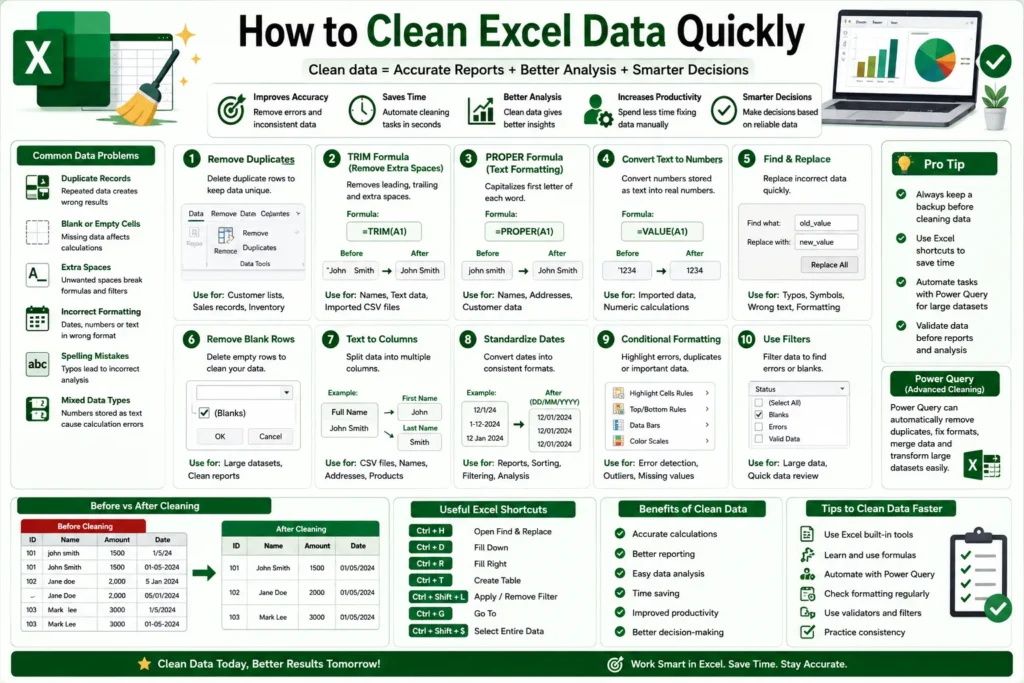
What Does Data Cleaning Mean in Excel?
Data cleaning means identifying and fixing:
- Duplicate values
- Empty cells
- Incorrect formatting
- Spelling mistakes
- Extra spaces
- Invalid data
- Inconsistent records
Clean data is important because it improves:
- Accuracy
- Reporting
- Analysis
- Productivity
- Decision-making
Poor-quality data can create serious problems in reports and calculations.
Related guide:
“Common Excel Formulas Everyone Should Know”
Why Cleaning Excel Data Is Important
Messy spreadsheets can lead to:
- Wrong calculations
- Duplicate reports
- Invalid analysis
- Confusing charts
- Data entry errors
Clean Excel data helps users:
- Analyze information correctly
- Create accurate reports
- Improve workflow efficiency
- Reduce manual corrections
Businesses and analysts spend a huge amount of time cleaning spreadsheet data before analysis.
Common Excel Data Problems
Before cleaning data, it is important to identify common spreadsheet issues.
Duplicate Records
Duplicate entries can create incorrect totals and reports.
Blank Cells
Empty rows or missing information can affect formulas and calculations.
Extra Spaces
Imported data often contains unwanted spaces.
Incorrect Formatting
Dates, currency values, and numbers may appear in inconsistent formats.
Spelling Mistakes
Typos can break filters and lookup formulas.
Mixed Data Types
Numbers stored as text can create calculation errors.
Remove Duplicate Data in Excel
Duplicate data is one of the most common spreadsheet problems.
How to Remove Duplicates
- Select your dataset
- Click Data tab
- Choose Remove Duplicates
- Select columns
- Click OK
Excel automatically removes repeated values.
When to Use Duplicate Removal
- Customer lists
- Sales records
- Email databases
- Inventory sheets
Removing duplicates improves report accuracy significantly.
Use TRIM Formula to Remove Extra Spaces
Extra spaces are very common in imported Excel data.
TRIM Formula Syntax
=TRIM(A1)This formula removes unnecessary spaces from text.
Common Uses of TRIM
- Imported CSV files
- Customer names
- Product lists
- OCR-extracted data
TRIM is one of the most useful Excel cleaning formulas.
Use PROPER Formula for Text Formatting
The PROPER formula capitalizes text correctly.
PROPER Formula Syntax
=PROPER(A1)Example:
- john smith → John Smith
Uses of PROPER Formula
- Name formatting
- Address cleaning
- Customer databases
Convert Text to Numbers
Sometimes numbers are stored as text, which breaks formulas.
How to Fix Text Numbers
Methods include:
- Multiply by 1
- Use VALUE formula
- Use Text to Columns
VALUE Formula Syntax
=VALUE(A1)This converts text values into real numbers.
Find and Replace Incorrect Data
Excel’s Find and Replace feature quickly fixes repetitive errors.
How to Use Find and Replace
- Press Ctrl + H
- Enter incorrect value
- Enter correct value
- Click Replace All
Common Uses
- Spelling corrections
- Symbol replacement
- Formatting cleanup
This tool saves a huge amount of manual editing time.
Remove Blank Rows Quickly
Blank rows make spreadsheets messy and difficult to analyze.
How to Delete Blank Rows
- Select dataset
- Press Ctrl + G
- Choose Special
- Select Blanks
- Delete rows
Removing empty rows improves spreadsheet organization.
Use Text to Columns Feature
Sometimes imported data appears in one column instead of multiple columns.
How Text to Columns Works
- Select column
- Click Data
- Choose Text to Columns
- Select delimiter
- Finish setup
Common Uses
- CSV imports
- Full name splitting
- Data organization
Standardize Date Formats
Inconsistent date formats create sorting and filtering problems.
Example Problems
- DD/MM/YYYY
- MM/DD/YYYY
- Text-based dates
How to Fix Dates
Use:
- Format Cells
- DATE formula
- Power Query
Consistent date formatting improves spreadsheet accuracy.
Use Conditional Formatting to Detect Errors
Conditional Formatting highlights:
- Duplicates
- Missing values
- Outliers
- Invalid entries
How to Apply Conditional Formatting
- Select data
- Click Home
- Choose Conditional Formatting
- Select rule type
This feature helps users identify problems quickly.
Clean Imported CSV Data
CSV imports often contain:
- Extra commas
- Broken columns
- Incorrect encoding
- Mixed formats
Best Practices
- Use Text to Columns
- Apply TRIM
- Check delimiters
- Review formatting carefully
Imported spreadsheet data usually requires cleaning before analysis.
Related article:
“How to Extract Data from PDF Files”
Use Excel Filters for Data Cleaning
Filters help isolate incorrect or incomplete records.
Benefits of Filters
- Detect blank fields
- Find duplicates
- Review invalid entries
- Organize large datasets
Filters are extremely useful for cleaning business spreadsheets.
Power Query for Advanced Data Cleaning
Power Query is one of Excel’s most powerful data-cleaning tools.
It can:
- Remove duplicates
- Merge datasets
- Transform data
- Fix formatting automatically
Why Power Query Is Powerful
Power Query automates repetitive cleaning tasks and saves significant time for large datasets.
Advanced Excel users rely heavily on Power Query for data preparation.
Common Excel Data Cleaning Mistakes
Many beginners make avoidable spreadsheet cleaning errors.
Deleting Raw Data
Always keep a backup before cleaning data.
Ignoring Data Validation
Invalid data can still enter spreadsheets if validation is missing.
Using Manual Corrections Only
Manual editing becomes inefficient for large datasets.
Forgetting to Check Formulas
Data cleaning can sometimes break formulas accidentally.
Tips to Clean Excel Data Faster
To improve spreadsheet cleaning speed:
- Use shortcuts
- Learn basic formulas
- Use filters regularly
- Automate repetitive tasks
- Use Power Query for large datasets
- Keep backup copies
Efficient workflows save hours of spreadsheet work.
Benefits of Clean Excel Data
Better Accuracy
Clean data reduces calculation mistakes.
Faster Reporting
Well-organized data improves report generation.
Improved Productivity
Users spend less time fixing errors.
Easier Analysis
Clean spreadsheets are easier to filter and analyze.
Better Decision-Making
Businesses rely on accurate data for planning and reporting.
Excel Data Cleaning vs Manual Editing
| Feature | Excel Tools | Manual Editing |
|---|---|---|
| Speed | Very Fast | Slow |
| Accuracy | High | Depends on user |
| Productivity | Better | Limited |
| Scalability | Easy | Difficult |
| Automation | Yes | No |
Excel tools clearly provide a faster and more efficient solution for spreadsheet cleanup.
AI and the Future of Data Cleaning
Artificial intelligence is rapidly improving spreadsheet automation.
Modern Excel now includes:
- AI suggestions
- Automated error detection
- Smart formatting
- Data insights
- Intelligent cleanup tools
AI-powered spreadsheets will continue improving workflow efficiency and data management.
Related article:
“Best AI Tools for Image to Excel Conversion”
Conclusion
Cleaning Excel data quickly is an essential skill for spreadsheet management, reporting, and analysis.
By learning tools like Remove Duplicates, TRIM, PROPER, Find and Replace, Conditional Formatting, and Power Query, users can organize spreadsheets faster, reduce errors, and improve productivity.
Whether you are managing business reports, customer databases, financial records, or imported CSV files, proper Excel data cleaning helps create more accurate and professional spreadsheets.