Bank statements are important financial documents used for accounting, expense tracking, tax filing, auditing, and business reporting. However, bank statements are often provided in PDF format, which makes editing and analyzing transaction data difficult.
Modern OCR and AI-powered PDF conversion tools now allow users to convert bank statement PDFs into editable Excel spreadsheets quickly and accurately.
In this guide, you will learn how to convert bank statement PDFs to Excel, how OCR technology works, the benefits of spreadsheet conversion, and tips for improving accuracy.
Why Convert Bank Statement PDFs to Excel?
PDF bank statements are difficult to:
- Edit
- Filter
- Sort
- Analyze
- Organize
Excel spreadsheets make financial data management much easier.
After conversion, users can:
- Analyze transactions
- Create reports
- Track expenses
- Filter payments
- Calculate totals
- Organize financial records
Businesses, accountants, freelancers, and finance professionals commonly convert bank statements into Excel for faster data processing.
You may also like:
“How to Extract Data from PDF Files”
What is a Bank Statement PDF?
A bank statement PDF is a digital financial document containing:
- Transaction history
- Deposits
- Withdrawals
- Balances
- Payment details
- Account activity
Bank statements may exist as:
- Editable PDFs
- Scanned PDFs
- Image-based PDFs
Scanned and image-based bank statements usually require OCR technology for conversion.
How OCR Technology Helps
OCR stands for Optical Character Recognition.
OCR technology scans PDF files and recognizes:
- Text
- Numbers
- Transaction tables
- Dates
- Financial records
Modern AI-powered OCR systems can also detect:
- Rows and columns
- Table structures
- Currency values
- Spreadsheet formatting
This allows bank statement data to be converted into editable Excel spreadsheets.
Related guide:
“PDF OCR Explained for Beginners”
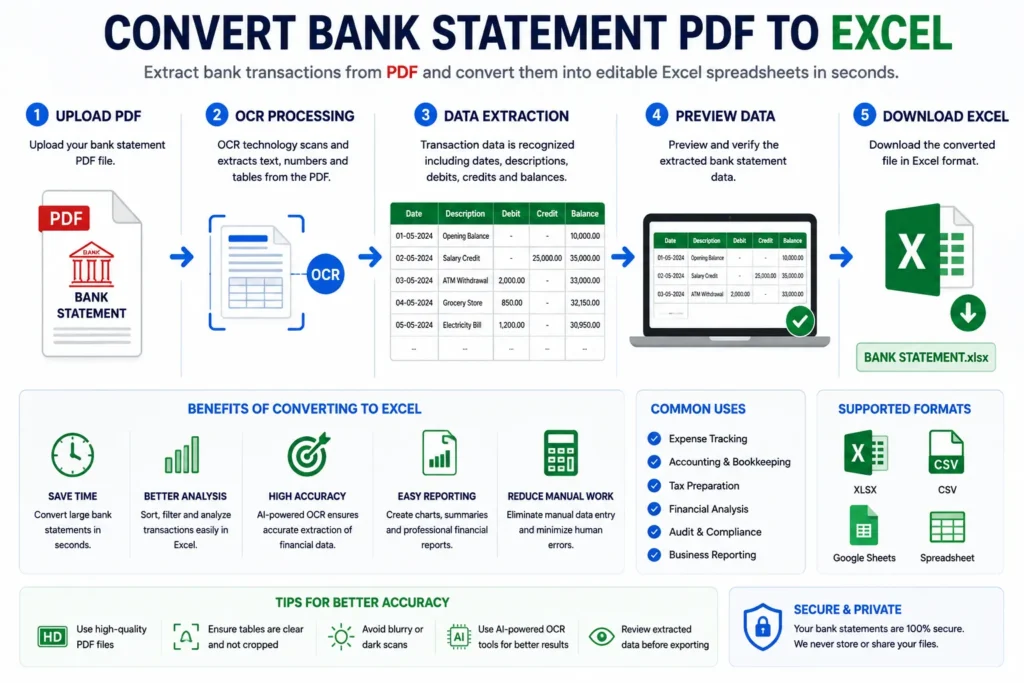
How to Convert Bank Statement PDF to Excel
Follow these steps to convert bank statement PDFs into editable Excel files.
Step 1: Choose a Reliable PDF to Excel Tool
Use an OCR and AI-powered converter that supports:
- Bank statement extraction
- OCR processing
- Table recognition
- Spreadsheet formatting
AI-powered tools usually provide better accuracy and formatting retention.
You may also read:
“How to Convert PDF to Excel Without Losing Formatting”
Step 2: Upload the Bank Statement PDF
Click the upload button and select your bank statement file.
Supported files usually include:
- Scanned PDF
- Image-based PDF
For better accuracy:
- Use high-quality documents
- Avoid blurry scans
- Ensure transaction tables are visible
Step 3: OCR Processing Begins
The OCR engine scans the PDF and identifies:
- Transaction dates
- Debit and credit values
- Balances
- Payment descriptions
- Table structures
AI-powered systems also analyze:
- Rows and columns
- Spreadsheet formatting
- Table alignment
- Financial data structure
This converts the bank statement into machine-readable spreadsheet data.
Step 4: Review Extracted Data
Most tools display a preview before generating the final Excel file.
Check:
- Transaction amounts
- Missing rows
- Date formatting
- Numerical accuracy
- Table alignment
Reviewing the extracted data improves spreadsheet accuracy.
Step 5: Download the Excel File
After processing is complete, download the spreadsheet file.
Supported export formats usually include:
- XLSX
- CSV
You can open the file in:
- Microsoft Excel
- Google Sheets
- Spreadsheet software
Common Uses of Bank Statement Excel Conversion
Converting bank statements into Excel is useful for:
- Expense tracking
- Accounting
- Tax preparation
- Financial analysis
- Business reporting
- Audit management
- Budget planning
Businesses often automate bank statement processing to reduce manual work.
Benefits of Converting Bank Statements to Excel
Saves Time
Large financial records can be processed within seconds.
Better Financial Analysis
Excel makes sorting and filtering transactions easier.
Reduces Manual Data Entry
Users no longer need to type transaction details manually.
Improves Accuracy
AI-powered OCR reduces spreadsheet errors.
Easy Reporting
Excel allows users to create charts, summaries, and financial reports easily.
Editable PDF vs Scanned PDF Bank Statements
Editable PDFs
Editable PDFs already contain selectable text.
These files are easier to convert because:
- Text already exists digitally
- OCR may not be required
Scanned PDFs
Scanned bank statements are image-based documents.
These files require OCR technology because:
- Text is stored as images
- Tables are not editable directly
Related article:
“Difference Between OCR PDF and Searchable PDF”
AI OCR vs Traditional OCR
Modern OCR systems now use artificial intelligence and machine learning.
Traditional OCR
Traditional OCR works well for:
- Printed text
- Simple layouts
- High-quality PDFs
However, it struggles with:
- Complex tables
- Poor scans
- Unusual formatting
AI-Powered OCR
AI OCR systems understand:
- Transaction tables
- Spreadsheet formatting
- Financial layouts
- Column alignment
AI-powered OCR provides:
- Better accuracy
- Faster processing
- Improved spreadsheet formatting
You may also like:
“Best AI Tools for Image to Excel Conversion”
Challenges of Bank Statement PDF Conversion
Although OCR technology is improving rapidly, some limitations still exist.
Poor PDF Quality
Blurred or low-resolution bank statements reduce OCR accuracy.
Complex Transaction Layouts
Some bank statements use unusual table structures.
Multi-Page Statements
Large statements may require advanced OCR processing.
Security and Privacy Concerns
Users should always use trusted and secure PDF conversion tools when handling financial documents.
Tips for Better Conversion Accuracy
To improve bank statement conversion quality:
- Use high-resolution PDFs
- Avoid blurry scans
- Ensure tables are clearly visible
- Use AI-powered OCR tools
- Review extracted transaction data carefully
These small improvements can significantly improve spreadsheet accuracy.
OCR vs Manual Bank Statement Entry
| Feature | OCR Conversion | Manual Entry |
|---|---|---|
| Speed | Very Fast | Slow |
| Accuracy | High | Depends on user |
| Productivity | Better | Limited |
| Scalability | Easy | Difficult |
| Time Required | Seconds | Hours |
AI-powered OCR clearly provides a faster and more efficient solution for financial document processing.
You may also read:
“How to Convert Image to Excel Online for Free”
Future of Financial OCR Technology
Artificial intelligence is rapidly improving financial OCR systems and spreadsheet automation.
Future bank statement conversion tools may provide:
- Smarter transaction categorization
- Real-time financial analysis
- Better multilingual support
- Improved formatting accuracy
- Automated accounting workflows
AI-powered financial automation will continue transforming accounting and business management systems worldwide.
Related article:
“Future of AI in Document Management”
Conclusion
Converting bank statement PDFs into Excel spreadsheets makes financial management faster, easier, and more efficient.
Using OCR and AI-powered technology, users can automatically extract transaction data, organize financial records, reduce manual work, and improve productivity.
Whether you are managing expenses, preparing taxes, analyzing transactions, or creating financial reports, Bank Statement PDF to Excel conversion tools provide a reliable solution for modern financial workflows.