Microsoft Excel is one of the most widely used spreadsheet tools for data entry, calculations, reporting, accounting, and business analysis. While many users rely heavily on the mouse, professional Excel users save massive amounts of time by using keyboard shortcuts.
Excel shortcuts improve speed, productivity, and workflow efficiency. Whether you are a student, office worker, accountant, data analyst, or beginner, learning important Excel shortcuts can help you work much faster.
In this guide, you will learn the best Excel shortcuts that save time, improve spreadsheet management, and increase productivity.
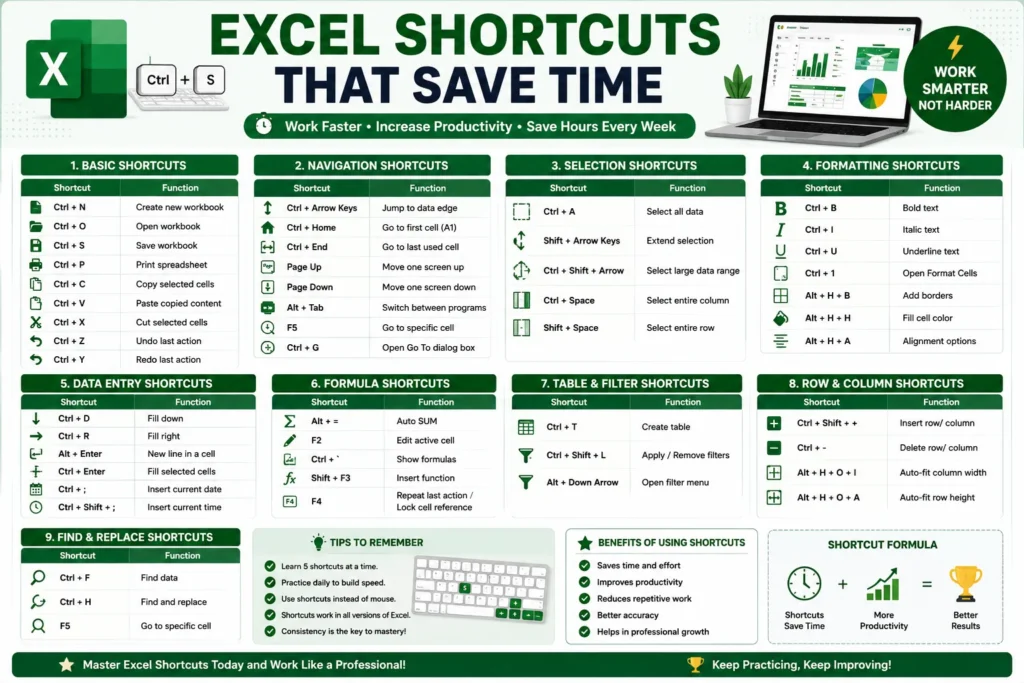
Why Excel Shortcuts Are Important
Using keyboard shortcuts reduces repetitive mouse movement and speeds up spreadsheet tasks.
Excel shortcuts help users:
- Work faster
- Improve productivity
- Reduce manual effort
- Navigate spreadsheets easily
- Format data quickly
- Manage large datasets efficiently
Professional Excel users depend heavily on shortcuts for daily work.
Related guide:
“Common Excel Formulas Everyone Should Know”
Basic Excel Shortcuts Everyone Should Know
These are the most important beginner-friendly Excel shortcuts.
| Shortcut | Function |
|---|---|
| Ctrl + N | Create new workbook |
| Ctrl + O | Open workbook |
| Ctrl + S | Save workbook |
| Ctrl + P | Print spreadsheet |
| Ctrl + C | Copy selected cells |
| Ctrl + V | Paste copied content |
| Ctrl + X | Cut selected cells |
| Ctrl + Z | Undo last action |
| Ctrl + Y | Redo last action |
These shortcuts are useful in almost every spreadsheet workflow.
Navigation Shortcuts in Excel
Large spreadsheets can become difficult to navigate manually.
These shortcuts help move quickly inside worksheets.
| Shortcut | Function |
|---|---|
| Ctrl + Arrow Keys | Jump to data edge |
| Ctrl + Home | Go to first cell |
| Ctrl + End | Go to last used cell |
| Page Up | Move one screen up |
| Page Down | Move one screen down |
| Alt + Tab | Switch between programs |
Navigation shortcuts are extremely useful for large datasets.
Excel Selection Shortcuts
Selecting data quickly improves spreadsheet efficiency.
| Shortcut | Function |
|---|---|
| Ctrl + A | Select all data |
| Shift + Arrow Keys | Extend selection |
| Ctrl + Shift + Arrow | Select large data range |
| Ctrl + Space | Select entire column |
| Shift + Space | Select entire row |
These shortcuts help manage data much faster.
Formatting Shortcuts in Excel
Formatting spreadsheets manually takes time.
These shortcuts speed up formatting tasks significantly.
| Shortcut | Function |
|---|---|
| Ctrl + B | Bold text |
| Ctrl + I | Italic text |
| Ctrl + U | Underline text |
| Ctrl + 1 | Open format cells |
| Alt + H + B | Add borders |
| Alt + H + H | Fill cell color |
Good formatting improves spreadsheet readability and presentation.
Data Entry Shortcuts
Data entry is one of the most repetitive Excel tasks.
These shortcuts save time during spreadsheet input.
| Shortcut | Function |
|---|---|
| Ctrl + D | Fill down |
| Ctrl + R | Fill right |
| Alt + Enter | New line inside cell |
| Ctrl + Enter | Fill selected cells |
| Ctrl + ; | Insert current date |
| Ctrl + Shift + ; | Insert current time |
These shortcuts are very useful for office work and reporting.
Formula Shortcuts in Excel
Excel formulas become easier to manage with shortcuts.
| Shortcut | Function |
|---|---|
| Alt + = | Auto SUM |
| F2 | Edit active cell |
| Ctrl + ` | Show formulas |
| Shift + F3 | Insert function |
| F4 | Repeat action or lock references |
Formula shortcuts improve spreadsheet calculation speed.
Related article:
“Beginner’s Guide to Microsoft Excel”
Excel Table and Filter Shortcuts
Managing tables efficiently is important for data analysis.
| Shortcut | Function |
|---|---|
| Ctrl + T | Create table |
| Ctrl + Shift + L | Apply/remove filters |
| Alt + Down Arrow | Open filter menu |
These shortcuts help users organize and filter data quickly.
Row and Column Shortcuts
Working with rows and columns becomes much faster using shortcuts.
| Shortcut | Function |
|---|---|
| Ctrl + Shift + + | Insert row/column |
| Ctrl + – | Delete row/column |
| Alt + H + O + I | Auto-fit column width |
| Alt + H + O + A | Auto-fit row height |
These shortcuts improve spreadsheet formatting efficiency.
Find and Replace Shortcuts
Searching manually inside large spreadsheets wastes time.
| Shortcut | Function |
|---|---|
| Ctrl + F | Find data |
| Ctrl + H | Find and replace |
| F5 | Go to specific cell |
Find and Replace shortcuts are extremely useful for data cleaning.
Related guide:
“How to Clean Excel Data Quickly”
Excel Shortcut Tips for Beginners
If you are new to Excel shortcuts:
- Learn 5 shortcuts at a time
- Practice daily
- Use shortcuts repeatedly
- Avoid relying only on the mouse
- Start with navigation shortcuts first
Consistency is the fastest way to build shortcut memory.
Most Useful Excel Shortcuts for Office Work
These shortcuts are heavily used in office environments.
| Shortcut | Use Case |
|---|---|
| Ctrl + S | Save reports quickly |
| Ctrl + C / V | Copy and paste data |
| Ctrl + Z | Undo mistakes |
| Alt + = | Fast calculations |
| Ctrl + Shift + L | Apply filters |
| Ctrl + T | Create tables |
Mastering these shortcuts can significantly improve office productivity.
Benefits of Using Excel Shortcuts
Saves Time
Keyboard shortcuts reduce repetitive actions.
Improves Productivity
Users can complete spreadsheet tasks faster.
Better Workflow Efficiency
Shortcuts simplify navigation and formatting.
Reduces Manual Effort
Less mouse movement improves working speed.
Essential Professional Skill
Advanced Excel users rely heavily on shortcuts.
Common Excel Shortcut Mistakes
Many beginners make these shortcut-related mistakes.
Trying to Learn Too Many Shortcuts
Focus on essential shortcuts first.
Not Practicing Regularly
Shortcuts require consistent usage to become natural.
Depending Only on Mouse Navigation
Mouse-only workflows are much slower.
Ignoring Formula Shortcuts
Formula shortcuts save significant calculation time.
Best Excel Shortcuts for Students
Students commonly use shortcuts for:
- Assignments
- Attendance sheets
- Budget tracking
- Research data
- Project reports
Shortcuts help students complete spreadsheet work faster and more efficiently.
Excel Shortcuts vs Mouse Workflow
| Feature | Keyboard Shortcuts | Mouse Workflow |
|---|---|---|
| Speed | Very Fast | Slower |
| Productivity | High | Medium |
| Efficiency | Better | Limited |
| Large Dataset Handling | Easy | Difficult |
| Professional Usage | Common | Less efficient |
Professional Excel users prefer shortcuts because they dramatically improve workflow speed.
Advanced Excel Shortcuts to Learn Later
After learning basics, users can explore:
- Power Query shortcuts
- Pivot table shortcuts
- VBA automation
- Advanced navigation keys
- Formula auditing shortcuts
These advanced tools are commonly used in professional environments.
AI and the Future of Excel Productivity
Artificial intelligence is rapidly improving spreadsheet automation.
Modern Excel now includes:
- AI formula suggestions
- Automated analysis
- Smart formatting
- Intelligent data cleanup
- Workflow automation
AI-powered Excel tools will continue improving productivity and spreadsheet efficiency.
Related article:
“Best AI Tools for Image to Excel Conversion”
Conclusion
Excel shortcuts are one of the fastest ways to improve spreadsheet productivity and workflow efficiency.
By learning navigation, formatting, formula, filtering, and data-entry shortcuts, users can save time, reduce repetitive work, and manage spreadsheets much more efficiently.
Whether you are a student, office employee, accountant, or business professional, mastering Excel shortcuts can significantly improve your daily workflow and spreadsheet skills.