Managing receipts manually can be time-consuming, especially for businesses, accountants, freelancers, and office professionals. Typing receipt details into spreadsheets increases the chances of errors and slows down workflow efficiency.
Modern OCR and AI-powered Receipt to Excel tools now make it possible to scan receipts and automatically convert the extracted data into editable Excel spreadsheets within seconds.
In this complete guide, you will learn how Receipt to Excel conversion works, how OCR technology extracts receipt data, and how to improve conversion accuracy for better spreadsheet management.
What is Receipt to Excel Conversion?
Receipt to Excel conversion is the process of extracting information from scanned receipts, bills, invoices, or payment slips and converting the data into editable spreadsheet files.
These tools use:
- OCR technology
- AI-based text recognition
- Machine learning algorithms
to detect:
- Store names
- Product details
- Prices
- Tax values
- Dates
- Payment information
The extracted data is then organized into:
- XLSX files
- CSV files
- Editable Excel spreadsheets
You may also like:
“How OCR Technology Works in Image to Excel Tools”
Why Convert Receipts to Excel?
Many businesses and individuals deal with large numbers of receipts every month.
Examples include:
- Expense tracking
- Tax management
- Accounting records
- Business reporting
- Inventory purchases
- Financial audits
Manually entering receipt data into spreadsheets takes time and often leads to mistakes.
Receipt to Excel converters help users:
- Save time
- Reduce manual work
- Improve accuracy
- Organize expenses easily
- Increase productivity
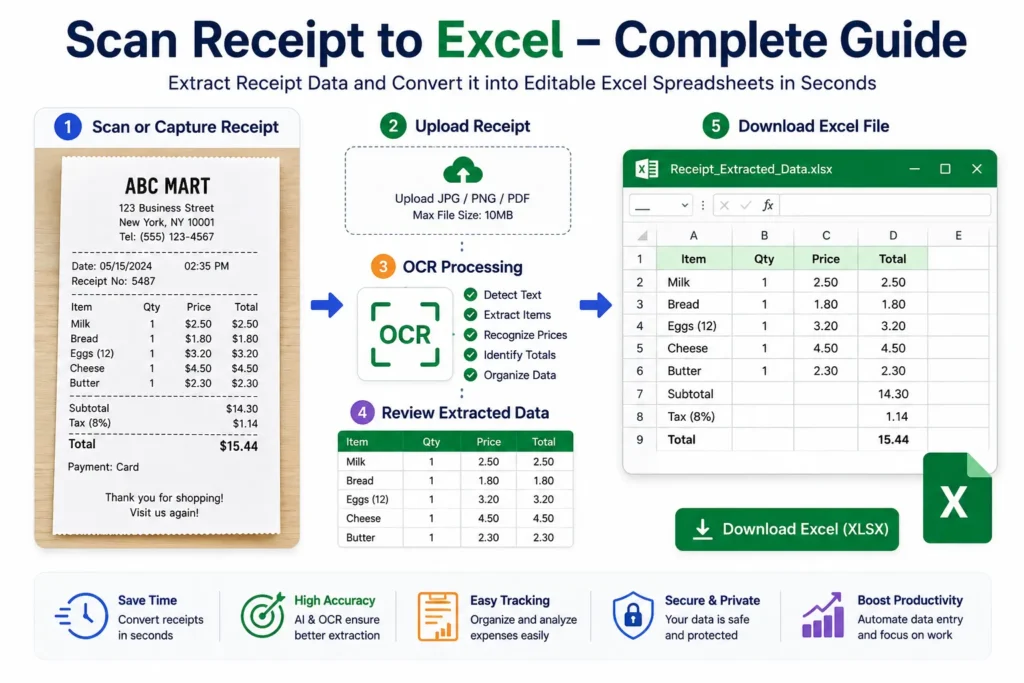
How to Scan Receipt to Excel
Follow these simple steps to convert receipts into editable Excel spreadsheets.
Step 1: Scan or Capture the Receipt
Use:
- Mobile phone camera
- Scanner
- Receipt scanning app
to capture the receipt image.
For better OCR accuracy:
- Keep the receipt flat
- Ensure proper lighting
- Avoid blurry images
- Capture the full receipt
- Use high-resolution images
Clear receipt scans improve text recognition significantly.
Step 2: Open a Receipt to Excel Tool
Visit a reliable OCR-based Receipt to Excel converter website.
A good converter should support:
- JPG
- PNG
- Scanned receipts
AI-powered tools usually provide better extraction accuracy and formatting.
You may also read:
“How to Convert Image to Excel Online for Free”
Step 3: Upload the Receipt Image
Click the upload button and select your receipt file.
Most tools support:
- JPG
- JPEG
- PNG
The system prepares the image for OCR processing.
Step 4: OCR Processing Begins
The OCR engine scans the receipt and identifies:
- Text
- Numbers
- Prices
- Dates
- Receipt structure
- Tax information
AI-powered systems also analyze:
- Table alignment
- Product rows
- Currency formatting
- Total values
This process converts the receipt into machine-readable spreadsheet data.
Step 5: Review Extracted Data
Most tools display a preview before generating the final Excel file.
Review:
- Product names
- Prices
- Totals
- Dates
- Missing values
- Formatting issues
Checking the data helps improve spreadsheet accuracy.
Step 6: Download the Excel File
Once the conversion is complete, download the spreadsheet file.
Supported export formats usually include:
- XLSX
- CSV
You can open the file in:
- Microsoft Excel
- Google Sheets
- Spreadsheet software
How OCR Technology Works in Receipt Scanning
OCR (Optical Character Recognition) technology allows computers to recognize printed text and numbers from images.
Modern Receipt to Excel tools use:
- OCR engines
- AI-powered document analysis
- Machine learning systems
to automatically convert receipt data into spreadsheets.
Related guide:
“What is OCR Technology?”
Common Uses of Receipt to Excel Conversion
Receipt conversion tools are widely used for:
- Expense management
- Accounting
- Tax preparation
- Financial reporting
- Business bookkeeping
- Inventory tracking
- Audit documentation
Businesses often automate receipt processing to reduce repetitive manual work.
Advantages of Receipt to Excel Tools
Saves Time
Large numbers of receipts can be processed within minutes.
Reduces Manual Data Entry
Users no longer need to type receipt details manually.
Better Accuracy
AI-powered OCR reduces human typing errors.
Easy Expense Tracking
Spreadsheet data can be filtered, sorted, and analyzed easily.
Improves Productivity
Businesses can automate financial record management.
Challenges of Receipt OCR Conversion
Although OCR technology is powerful, some limitations still exist.
Low-Quality Receipt Images
Blurred or dark scans reduce OCR accuracy.
Folded or Damaged Receipts
Wrinkled receipts can make text recognition difficult.
Handwritten Information
Handwritten notes may not be recognized accurately.
Complex Receipt Layouts
Some receipts use unusual formatting that can confuse older OCR systems.
Tips for Better Receipt to Excel Accuracy
To improve receipt conversion results:
- Use high-resolution scans
- Avoid shadows and blur
- Capture the full receipt
- Keep receipts flat
- Use AI-powered OCR tools
These small improvements can significantly increase extraction quality.
OCR vs Manual Receipt Entry
| Feature | OCR Conversion | Manual Entry |
|---|---|---|
| Speed | Very Fast | Slow |
| Accuracy | High | Depends on user |
| Productivity | Better | Limited |
| Scalability | Easy | Difficult |
| Time Required | Seconds | Hours |
OCR clearly provides a faster and more efficient solution for receipt data management.
You may also like:
“OCR vs Manual Data Entry”
Future of Receipt Scanning Technology
Artificial intelligence is rapidly improving receipt OCR systems.
Future Receipt to Excel tools may provide:
- Better handwriting recognition
- Real-time receipt analysis
- Improved multilingual support
- Automatic expense categorization
- Higher OCR accuracy
AI-powered financial automation will continue transforming accounting and expense management workflows.
Related article:
“Future of AI in Document Management”
Conclusion
Receipt to Excel converters make it easy to scan receipts and transform them into editable spreadsheets quickly and accurately.
Using OCR and AI technology, users can automate expense tracking, reduce manual work, improve productivity, and organize financial records more efficiently.
Whether you are managing business expenses, tax records, invoices, or accounting reports, Receipt to Excel tools provide a fast and reliable solution for modern financial data management.